
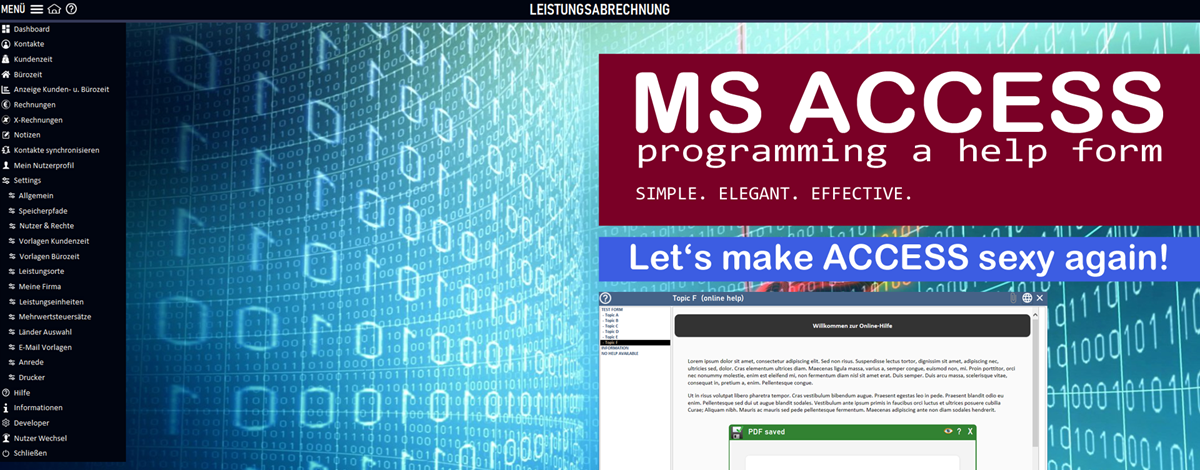
Custom build Help-Form
Why help is so important and how we can make it MEGA easy!
Have you ever experienced this? A customer calls because they've got stuck in an application, even though the answer would have been right there in the help. This is exactly where a well thought-out in-app help comes into play - it's more than just an extra!
What if I told you that with just a few clicks you can create a help form in MS Access that is not only effective but also super easy to manage? It sounds too good to be true, but it's the reality!
Why help is really important?
Imagine a user has a problem - be it entering data or finding a function. Immediately available help could make the difference between the user succeeding or giving up in frustration. Well-placed help solves many support queries in the blink of an eye.
Of course, an intuitive user interface (GUI) is a crucial factor in avoiding many problems in the first place. But what happens if a user still encounters difficulties? And what is the secret of good help? Immediate availability! No long searches in documents or PDFs. It has to be right there when the user needs it - and that's exactly what we achieve with this solution, which is super easy to use!
The survey for the perfect help!
I did a survey to find out which types of help systems most of you use. And the result is exciting! Most people use PDF documents, video tutorials, online help texts and integrated help forms. But, why not combine ALL options together to provide truly comprehensive, accessible and extremely flexible help?
✨What makes this integrated help so brilliant?
You can build a user-friendly and instantly accessible help center. Imagine you have all help topics stored in a table. You can manage different help types such as PDFs, web links, videos and even rich text help texts in one central location. So the user has everything they need at their fingertips with just one click!
And best of all, it's all so easy and super quick to implement! We're talking about a solution that doesn't require complex processes, but works with a single, ingenious method.
✨ How does it work? - It's quite simple!
The following fields can be found in the help table (tblDLG_Help):
Field name | Description | |
help_sort |
| |
help_topic | Here you enter the name of the help with which it will be called up later | |
help_header | The heading of the help topic - so the user always has an overview. | |
help_listbox | The name that appears in the list box in the help form | |
| help_text | The help text in rich text format - including formatting! | |
| help_file | The attachment field for your PDFs and other file attachments. | |
| help_url | A URL that links to external websites, videos or other useful documents. |
The help formular (frmDLG_Help) has following parts:
Feldname | Erklärung |
lboTopics | Here the user selects the appropriate help topic (and each data record corresponds to a topic!). |
help_text | The help text is displayed in rich text format - for maximum readability! |
webHelp | A web control that displays web pages when the user clicks on a corresponding link. |
Icons | These little helpers indicate whether attachments or web content are available - so the user knows immediately what to expect. |
✨ Soooo easy to call!
You're probably wondering how the whole thing is called up. It couldn't be simpler! Just one command opens the help form for the respective topic:showHelp("helpname")
You can even set up a separate help for each form and link the help icon to a simple event:
showHelp(me.Name)
No stress, no complicated steps - just enter the name of the form and the help is there!
✨ The administration? It's easy!
Everything you need to customize is done in the help table. Once you have created help for a form and entered it in the table, you have everything in one central location. No constant updates or complex adjustments in different places. Everything in one table - how ingenious is that?
✨ Edit help texts directly in the form?
Of course you can! You can also call up the help form in an editable form, in which case you can edit the help texts (help_text) directly in the form. The easiest way to do this is to write and format your text in MS Word and simply copy it into the form.
✨ Help texts vs. web control:
If both a help text and a web link are available, the help text is displayed, while the corresponding icon indicates the web link. If there is only a web link, the web link is displayed directly in the web control - the user only has to click and is taken directly to the correct page.
💡Conclusion: Help has never been so easy!
With a user-defined help form in MS Access, you can offer super-flexible, immediately available and extremely user-friendly help. No unnecessary searching in external documents or PDFs - everything is centralized and available with just one click. You can integrate all kinds of help topics - PDFs, videos, links, rich text - and manage it all in a single table. The ease of management and quick implementation make this solution a real game changer for your applications!
I'm super excited to hear what you think! What ideas do you have to improve this solution even further? Let's make the user experience even better together!
🔥 And now it's your turn!
Let's take ACCESS to the next level together. Because one thing is clear: Standard was yesterday. Today, ACCESS is sexy. 🔥
This small extension not only makes your Access interface more intuitive, but also a whole lot “sexier”.
You can find the detailed description and all notes directly in the code - well documented as usual.
Version: 1.1
 A little donation


