
Custom build settings
Introduction
MS Access databases are known for their flexibility and customisability. However, the question often arises as to the best way to save user-defined settings. Common methods such as external INI files or the Windows registry have their advantages and disadvantages. In this article, I present an elegant and efficient solution for saving, retrieving, changing and deleting user-defined settings directly in Access tables. Forget complicated recordset queries! With these simple VBA functions, which even support IntelliSense, you can manage settings with just one line of code. The example presented here saves settings in the frontend and backend. However, it can also be easily extended to other tables. For example, a user settings table that is saved in the user profile.
Why this approach?
- Simplicity: Short, intuitive commands make work easier. No complex recordset operations required.
- IntelliSense support: Faster and error-free code entry.
- Efficiency: Fast reading and writing of settings.
What is required?
- tblSettingsFE, tblSettingsBE.
- modSettings
Tables:
The respective tables must be created as follows: 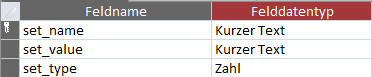
' DECLARATIONS ---------------------------------------------------------------------------
Private Const settingsBE As String = ‘tblSettingsBE’ ‘ table for the backend settings
Private Const settingsFE As String = ‘tblSettingsFE’ ‘ table for the frontend settings
'-----------------------------------------------------------------------------------------

' ENUMMERATIONS --------------------------------------------------------------------------
'
' Put all setting names in here (intelisense)
Public Enum eSettings
    'Frontend Settings (1 - 99)
    f_BackendPath = 1
    f_Version = 2
    f_Programmer = 3
    ...
    'Backend Settings (100 - XXX)
    b_BackupPath = 100
    b_BackupDays = 101
    b_ProjectName = 102
    ...
End Enum
The settings names are entered in the eSettings enumeration. This is necessary for the Intelisense to work. It is not necessary to enter these names in the tables as well. This is done by the newSetting() function. The advantage of this is that you can create new settings from the VBE without having to enter them manually in the BE. Especially if you do not have access to the backend of a customer.
The setting values are saved as a string, and the field data type is also specified when creating newSetting(). When the setting is retrieved, the string is then converted to the correct type based on the field data type.
The assigned number in the enumeration can be used to control which table the setting refers to. There is a help function that realises this. In this example, we use the numbers up to 99 for the frontend and everything above that for the backend. This must also be reflected in the help function. This would also be the approach for integrating further setting tables.
Create a new setting in the frontend:
newSetting f_ BackendPath, “D:\backend“, eString
Change a setting in the frontend:
setSetting f_ BackendPath, “E:\backend“
Read a setting from the backend:
Debug.Print getSetting(b_ BackupPath)
Delete a setting from the backend:
delSetting(b_ ProjectName)
A detailed description of the functions can be found as comments in the code.
DOWNLOAD
Version: 1.2
 A small donation


