
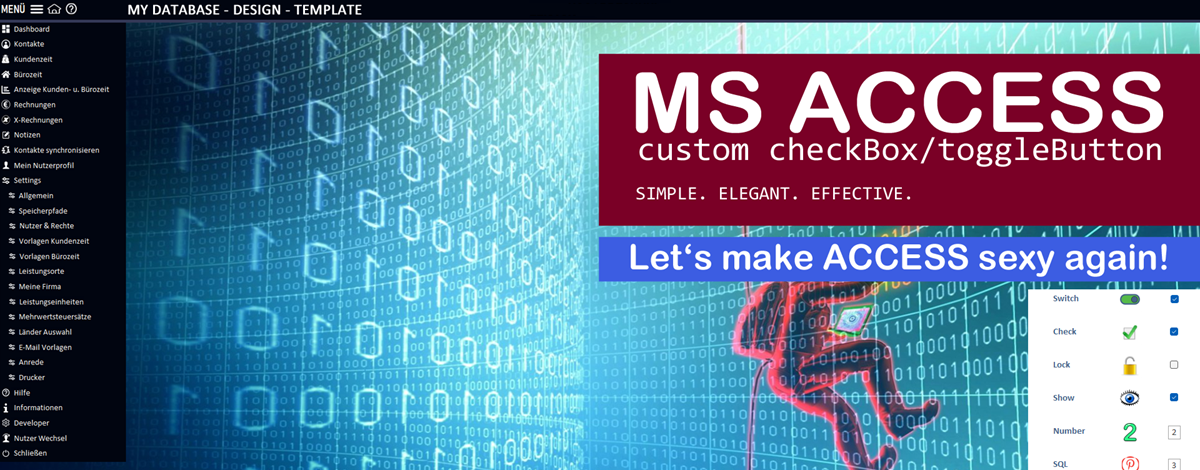

Access forms: Stylish checkboxes and toggle buttons!
We all know that the standard controls in Microsoft Access aren't particularly stylish. This is especially true of the checkbox. Sometimes we look longingly at modern web applications, where everything is smooth, interactive and stylish.
But hey – what if I told you that Access can do more than it seems at first glance?
👉 With a little code, imagination and clever use of existing functions, you can conjure up something really cool even from an old Access form!
In this article, I'll show you two simple ways to replace a boring checkbox or toggle button with a command button – with the right icon, hover effect and lots of interactivity!
Why a command button?
✅ Any icons (even dynamic ones at runtime)
✅ Size adjustment – from mini to mega buttons
✅ Hover functions and visual feedback
✅ More interaction and a modern look
✅ Free design for states such as ON/OFF, LOCK/UNLOCK, SHOW/HIDE, etc.
In contrast, a checkbox is... well, quite limited: small, grey, angular – and somehow lifeless 😅
🧪 Example1: Checkbox
- What do you need?
• A suitable icon (from the hidden MSysResources table)
• An additional CommandButton that controls the checkbox
• And a few lines of VBA
🧠 The idea:
The button clicks → the value of the checkbox is toggled → the picture gets changed
Everything in one procedure in the form.
Private Sub cmdShow_Click()
' toggle the value (True/False)
Me.chkShow.value = Not Me.chkShow.value
' change the icon without using an additional function (thanks to Alessandro Grimaldi)
Me.cmdShow.Picture = IIf(Me.chkShow, "show_ON", "show_OFF")
End Sub
🧪 Example 2: Toggle with multiple states
To display all used Icons in the MSysResource for example. Therefor we use a textbox to store a number and using a function to display then the icons.
🔁 With a text box as a status memory and a command button, you can switch between any number of states:
e.g. 1 → 2 → 3 → ... → 16 → back to 1.
Private Sub cmdIcons_Click()
tboIcons = (Nz(tboIcons) Mod 16) + 1
' we could use as well a switch expresion here instead the next function
SetMyControlImage_ICONS Me, Me.cmdIcons, Me.tboIcons.value
End Sub
Public Sub SetMyControlImage_ICONS(frm As Form, ctr As Control, ctrValue As Integer)
Select Case ctrValue
Case Is = 1: frm.Controls(ctr.Name).Picture = "switch_ON"
Case Is = 2: frm.Controls(ctr.Name).Picture = "switch_OFF"
Case Is = 3: frm.Controls(ctr.Name).Picture = "check_ON"
Case Is = 4: frm.Controls(ctr.Name).Picture = "check_OFF"
Case Is = 5: frm.Controls(ctr.Name).Picture = "lock_ON"
Case Is = 6: frm.Controls(ctr.Name).Picture = "lock_OFF"
Case Is = 7: frm.Controls(ctr.Name).Picture = "show_ON"
Case Is = 8: frm.Controls(ctr.Name).Picture = "show_OFF"
Case Is = 9: frm.Controls(ctr.Name).Picture = "no1"
Case Is = 10: frm.Controls(ctr.Name).Picture = "no2"
Case Is = 11: frm.Controls(ctr.Name).Picture = "no3"
Case Is = 12: frm.Controls(ctr.Name).Picture = "no4"
Case Is = 13: frm.Controls(ctr.Name).Picture = "facebook"
Case Is = 14: frm.Controls(ctr.Name).Picture = "linkedin"
Case Is = 15: frm.Controls(ctr.Name).Picture = "pinterest"
Case Is = 16: frm.Controls(ctr.Name).Picture = "youtube"
End Select
End Sub
🚀 Conclusion
With minimal effort, you can not only expand the functionality of your Access forms, but also modernise their appearance and interactivity.
This suddenly makes Access exciting, lively and, above all, user-friendly again 💥
👉 Thanks to Alessandro Grimaldi he gave me the hint to use the IIf Expression and showed me an easy way to toggle numbers.
In the download, I show various techniques for changing the icon. Directly in the form or as a function. And I also use different techniques in the functions. Depending on personal taste or intended use.
🔥 And now it's your turn!
Let's take ACCESS to the next level together. Because one thing is clear:
Standard was yesterday. Today, ACCESS is sexy. 🔥
💬 Do you have any questions, ideas, improvements or want to show off your version? Feel free to comment!
This small extension not only makes your Access interface more intuitive, but also a whole lot “sexier”.
You can find the detailed description and all notes directly in the code - well documented as usual.
Version: 1.1
 A small donation


