

Reading and writing the Windows registry with VBA
With a single VBA module your Access application reads and writes values in the Windows registry – no reference, in 32- and 64-bit Office. The ideal place for everything that belongs to the user and has to survive a frontend update.
Why the registry at all?
Every Access application has to remember a few things: where the backend is, which language the interface runs in, how large the main window was last time, whether diagnostic mode is on. The obvious idea – a table for it – has a catch: a table in the frontend is gone with the next update, because an update replaces the .accde completely. A table in the backend, on the other hand, is shared by all users, although these settings are meant to apply per user. And an INI file next to the program fails because of the missing write permission below C:\Program Files.
This is exactly where the registry is right. The area HKEY_CURRENT_USER\Software belongs to the logged-on user, needs no admin rights, stays untouched by a frontend update and travels with the user profile in company networks. Typical things that are well kept there:
- The path to the backend – survives every frontend update.
- Window position, last folder, last filter – different for every user.
- Language and colour scheme – a user preference, not data.
- A diagnostic switch such as
LogLevel = 2– can be switched on at the customer’s without touching the .accde. - The date of the first start and a start counter – the basis for a demo period.
And reading pays off too: the registry tells you whether Office is 32- or 64-bit, whether the WebView2 runtime is installed, which ODBC driver is available, where the “Documents” folder really is (OneDrive likes to move it) and whether Windows runs in light or dark mode.
Registry Helper makes both easy – in pure VBA, without a reference.
What the module is
The foundation is the module modRegistry. It talks to the Windows API directly, runs in 32- and 64-bit Office and needs no reference. Import the file modRegistry.bas into your database (in the VBA editor: File → Import File), and functions for reading, writing, listing and deleting are at your disposal.
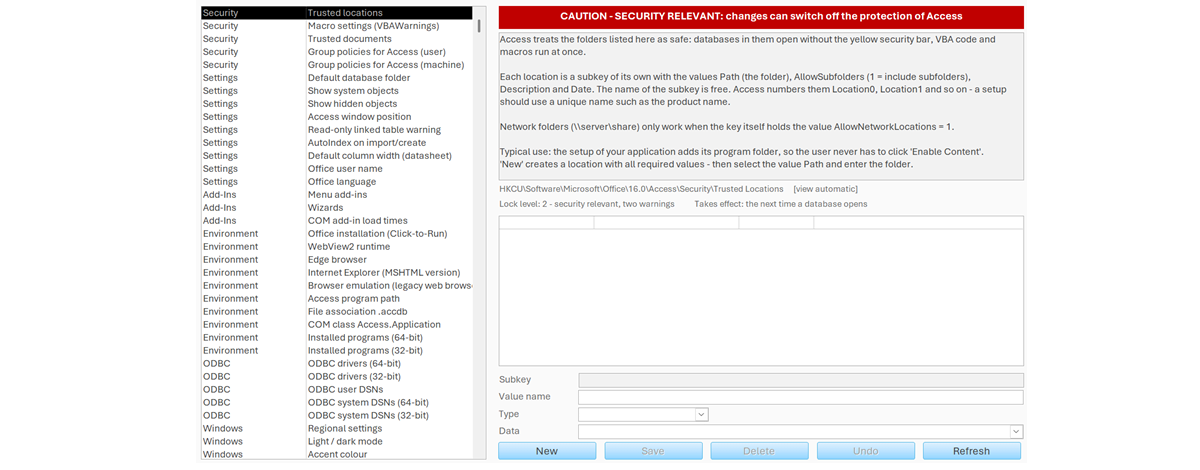
It comes with a demo database that shows 47 interesting registry entries in nine groups and lets you change them – with warnings and locks.
| Item | Requirement |
|---|---|
| Access | Access 2021 or Microsoft 365, 32 or 64 bit |
| Windows | Windows 10 or 11 |
| References | none (late binding, Windows API only) |
| Rights | normal user rights; admin rights only for writing to HKLM |
Quick start
Write paths the way regedit shows them: root key, then the path. The short forms HKCU, HKLM, HKCR, HKU, HKCC are accepted as well as the long names.
Const C_KEY As String = "HKCU\Software\MyCompany\MyApp"

' write - the key is created when needed
RegWrite C_KEY, "BackendPath", "\\server\data\backend.accdb"
RegWrite C_KEY, "StartCount", 1, C_REG_DWORD

' read - with a default in case the value does not exist yet
Debug.Print RegRead(C_KEY, "BackendPath", "")
Debug.Print RegRead(C_KEY, "StartCount", 0)
RegWrite creates missing keys on the way by itself. For a missing value RegRead raises no run-time error, it returns the default you passed – just right for the very first start, when nothing has been stored yet.
All value types, both views, Unicode
RegWrite writes every registry type. Without a type, text (REG_SZ) is written:
Const C_KEY As String = "HKCU\Software\MyCompany\MyApp"

RegWrite C_KEY, "Name", "Müller"                              ' REG_SZ
RegWrite C_KEY, "LogPath", "%TEMP%\myapp.log", C_REG_EXPAND_SZ
RegWrite C_KEY, "StartCount", 42, C_REG_DWORD
RegWrite C_KEY, "Size", CDec("1099511627776"), C_REG_QWORD
RegWrite C_KEY, "List", Array("a", "b", "c"), C_REG_MULTI_SZ
RegWrite C_KEY, "Data", RegHexToBytes("00FF7F10"), C_REG_BINARY
Texts are Unicode – umlauts and characters of any language are preserved.
A special topic on 64-bit Windows is the separate 32-bit and 64-bit view below HKLM\SOFTWARE. A 32-bit program is silently redirected to the 32-bit view – so the same code reads something different in 32-bit Office than in 64-bit Office. Some keys even exist in only one of the two views. That is why modRegistry lets you choose the view on every call:
Public Function ExampleOfficeBitness() As String
Const C_KEY As String = "HKLM\SOFTWARE\Microsoft\Office\ClickToRun\Configuration"

    ExampleOfficeBitness = RegRead(C_KEY, "Platform", "", C_REG_VIEW_64)
End Function
With C_REG_VIEW_AUTO, C_REG_VIEW_32 or C_REG_VIEW_64 you decide: the view of the running Office or deliberately one of the two. For ODBC drivers AUTO is right (a 64-bit Access can only use 64-bit drivers); for a key that exists only in the 64-bit view you force C_REG_VIEW_64.
A practical example: remembering the window position
A classic case for your own area – restore it in Form_Load, store it in Form_Unload:
Public Sub ExampleWindowSave(ByVal frm As Access.Form)
Dim sKey As String

    sKey = C_APP_KEY & "\Forms\" & frm.Name
    RegWrite sKey, "Left", frm.WindowLeft, C_REG_DWORD
    RegWrite sKey, "Top", frm.WindowTop, C_REG_DWORD
    RegWrite sKey, "Width", frm.WindowWidth, C_REG_DWORD
    RegWrite sKey, "Height", frm.WindowHeight, C_REG_DWORD
End Sub

Public Sub ExampleWindowRestore(ByVal frm As Access.Form)
Dim sKey As String

    sKey = C_APP_KEY & "\Forms\" & frm.Name
    If Not RegValueExists(sKey, "Width") Then Exit Sub
    frm.Move SignedLong(RegRead(sKey, "Left", 0)), _
             SignedLong(RegRead(sKey, "Top", 0)), _
             SignedLong(RegRead(sKey, "Width", frm.WindowWidth)), _
             SignedLong(RegRead(sKey, "Height", frm.WindowHeight))
End Sub
The detour via SignedLong has a reason: REG_DWORD has no sign, and a window position left of the main screen would be negative. The module comes with ready-made helpers for exactly such details.
Reading errors instead of guessing
Is a value missing because it does not exist – or because the permission is missing? RegRead returns the default in both cases, RegLastError reveals the cause:
If Not RegWrite("HKLM\SOFTWARE\MyCompany", "Test", "x") Then
    Select Case RegLastError()
        Case C_REG_ERR_ACCESS_DENIED: MsgBox "You lack the permission."
        Case C_REG_ERR_INVALID_DATA:  MsgBox "Value does not fit the type."
    End Select
End If
Besides reading and writing, the module lists keys and values (RegEnumKeys, RegEnumValues), checks them (RegValueExists, RegKeyExists), deletes them (RegDeleteValue, RegDeleteKey), resolves %VARIABLES% and translates every raw value into readable plain text.
Where the limits are
Registry Helper does not hide where it stops – and that is a strength:
- The application does not write to
HKLM. Access runs without elevated rights even for an administrator; every attempt to write toHKLMends with “access denied”. Whatever should apply to all users is the job of the setup. - No passwords in plain text – every user can read their part of the registry.
- No large amounts of data – a few kilobytes per value are the sensible limit.
- No copy protection. A demo period kept in the registry shows the principle; deleting the key resets it. Real protection needs more.
RegDeleteKeynever deletes a whole branch. When a key has subkeys, the function refuses – so a wrong path never takes more with it than intended.
By the way, for plain user settings as text the built-in SaveSetting is enough. But as soon as you need numbers, a path of your own, HKLM or the 32/64-bit view, modRegistry is the way.
The demo database
The database that comes with it opens the form frmRegistry. On the left a catalog of 47 registry entries in nine groups – Security, Settings, Add-ins, Environment, ODBC, Windows, Developer, Users and the own area. On the right the explanation of the selected entry and all of its values, exactly as they are in the registry of this machine right now. The column “Value” translates raw values into plain text: time stamps into a date, twips into centimetres, a colour into #RRGGBB.
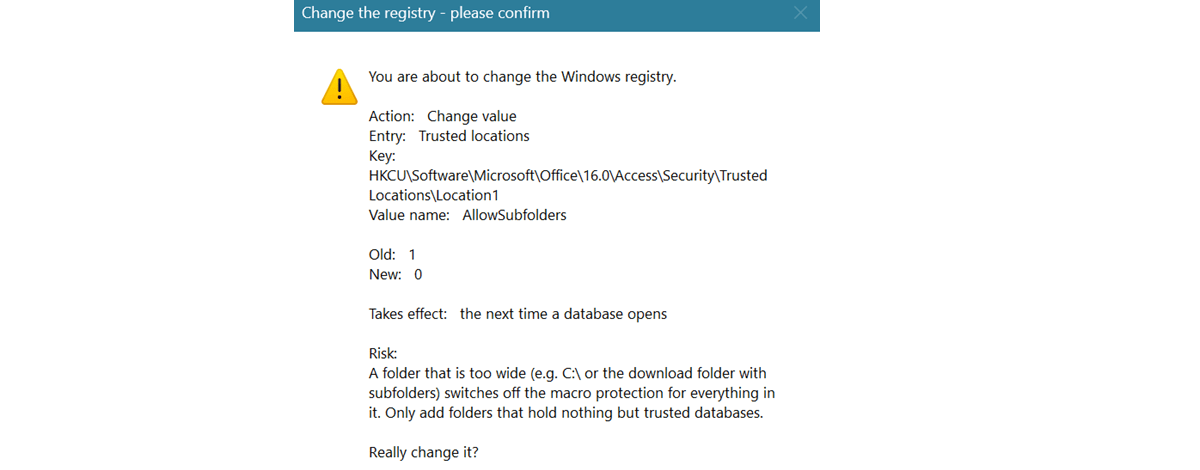
Much can be changed – but with a safety net: every entry has a lock level, a colour bar shows it, and before every change there is a warning with the old and the new value (with “No” preselected). In the code, writing is only ever possible below HKCU\Software, never below Policies or Classes. Every change is stored with its old value in a log; “Undo” restores the last action – even a deleted subkey with all of its values.
So you can explore the registry of your machine safely and see at the same time how the module is used in real code.
Tested
The module comes with a self test. TEST_modRegistry works exclusively in a test key of its own and removes it again at the end. It checks all value types, Unicode, unsigned numbers, the error codes, listing, the delete rules and that HKLM stays closed without admin rights. Best run it once in 32-bit and once in 64-bit Office – then you also see what each view returns.
Conclusion
Registry Helper gives your Access application a reliable place for everything that belongs to the user but not into the database – and that survives an update. One module, no reference, 32- and 64-bit, all value types, both views, clear error codes and safe delete rules. Reading, it gives you the overview of Office, Windows and the installed drivers you need at start up; writing, it stays disciplined in its own area. Exactly the way an application should treat the registry.
Download
Registry Helper is a VBA module that reads, writes, lists and deletes values of every type in the Windows registry – no reference, in 32- and 64-bit Office, with a choice between the 32-bit and the 64-bit view.
Requirements: Ab Access 2021 und Microsoft 365, 32/64-bit
File size: 807 KB