

EdgeBrowser - A Dual-List Control
A free control for Microsoft Access that shows two lists side by side. The user moves entries by click or drag & drop, VBA pushes them in and reads the result back – rendered in the acEdgeBrowser, driven from a single small class.
Two lists side by side, with entries moving back and forth between them: a pattern you need again and again in Access – picking fields, assembling columns, assigning recipients. With built-in tools it stays clumsy. The DualList Selector solves it as a ready-made control that renders in the acEdgeBrowser and is driven from VBA through a single class.
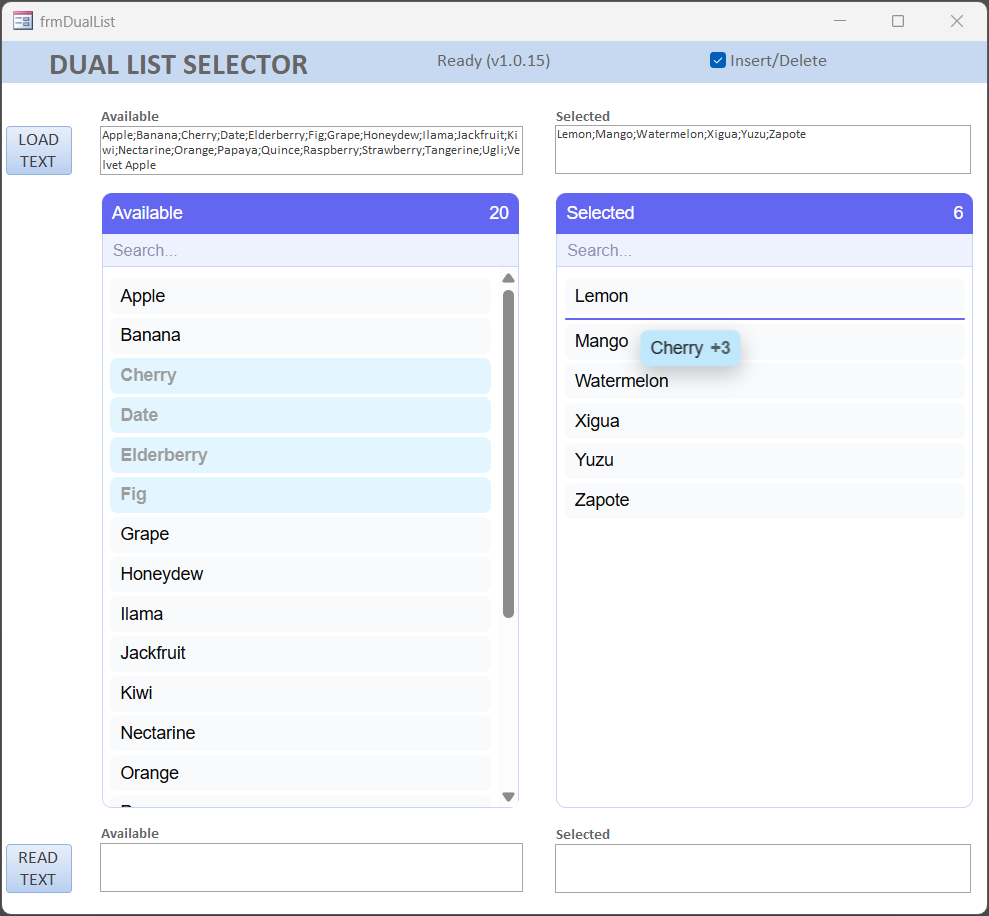
What the control does
The control shows an Available list and a Selected list. The user arranges the entries, the application then reads them. Everything follows the Load → Edit → Save principle:
- VBA pushes the two lists in once.
- The user works entirely inside the page – with no VBA access.
- VBA reads the result only when it asks for it.
Between loading and saving there is no ongoing synchronisation. This keeps the interaction smooth and the form load low.
Built in five minutes
Prerequisite is an acEdgeBrowser control named webDualList on the form. The full integration:
Private WithEvents m_dl As clsDPdualList

Private Sub Form_Load()
    Set m_dl = New clsDPdualList
    m_dl.SetLists "Apple;Banana;Cherry", "Lemon;Mango"   ' buffered
    m_dl.InsertDelete = True
    Me.OnTimer = "[Event Procedure]"                      ' required in code
    Me.TimerInterval = 250
End Sub

Private Sub Form_Timer()                 ' load once, when the form exists
    Me.TimerInterval = 0
    m_dl.Init Me.webDualList, "webDualList"
End Sub

Private Sub webDualList_DocumentComplete(URL As Variant)
    If Not m_dl Is Nothing Then m_dl.HandleNavigationComplete
End Sub

Private Sub Form_Unload(Cancel As Integer)
    If Not m_dl Is Nothing Then m_dl.Destroy
    Set m_dl = Nothing
End Sub
Read the result on Save in one call:
Dim sAvail As String, sSel As String
m_dl.GetBoth sAvail, sSel
Do not navigate in Form_Load: m_dl.Init loads the page and belongs in the one-shot Form_Timer, not in Form_Load – navigating the acEdgeBrowser too early leaves the control black. And Me.OnTimer = "[Event Procedure]" must be set in code; importing a form module does not set the event property.
Operating the control
These interactions happen entirely inside the page – without a single VBA call:
| Action | How |
|---|---|
| Select | click |
| Multi-select | Ctrl+click (toggle one), Shift+click (range) |
| Move | double-click, or drag & drop |
| Re-order | drag within the same list |
| Filter | search box above each list, the X clears the search |
| Context menu | right-click: sort, move, to the top/bottom, plus Insert and Delete |
While dragging, an insert line shows the target position; drag the cursor to the top or bottom edge and the list auto-scrolls. The order of the entries is preserved and reported back on reading.
Loading and reading data
The data is either a string or an array. As a string:
m_dl.SetLists "Apple;Banana;Cherry", "Lemon;Mango"
' ... user works ...
Dim sAvail As String, sSel As String
m_dl.GetBoth sAvail, sSel
As an array:
Dim vAvail As Variant, vSel As Variant
m_dl.SetArrays Array("Apple", "Banana", "Cherry"), Array("Lemon", "Mango")
' ... user works ...
m_dl.GetBothArrays vAvail, vSel
SetLists and SetArrays may be called before loading – the values are buffered and applied automatically as soon as the page is ready.
One call for both: GetBoth or GetBothArrays reads both lists in one round trip. Prefer this over two calls to GetAvailable + GetSelected.
Properties and limits
| Property | Type | Default | Meaning |
|---|---|---|---|
InsertDelete | Boolean | True | shows/hides Insert and Delete in the context menu |
IsReady | Boolean (Get) | – | True once the page has loaded |
Version | String (Get) | – | version string of the component |
Entries are joined internally with a semicolon.
No semicolon inside an entry: an entry must not contain the separator ; – it would be read back as two entries. If the data contains semicolons, change the separator in the page (SEP).
Deployment
The runtime package consists of three files, imported in this order and then compiled:
DPcoreDL.bas            ' reduced, bundled runtime core
clsDPwebBridgeDL.cls    ' communication bridge Access <-> page
clsDPdualList.cls       ' the control (the page is embedded inside it)
The core DPcoreDL ships with the control; no separate installation is needed. The DL suffix lets several free DIETERLE components live in the same database without colliding.
Form: a Form_*.cls cannot be imported through the VBA editor. Create the demo form frmDPdualList with the controls, paste the code and set the event properties to [Event Procedure]. The files are UTF-8 with CRLF – import them as-is, do not re-save with LF.
Download
Free dual-list control for Microsoft Access based on the acEdgeBrowser. Two lists, move entries by multi-select and drag & drop, read the result in a single call.
Voraussetzungen: Microsoft 365, Access 2024+, 32/64-bit