

Sorting Continuous Forms in MS Access – With One Click
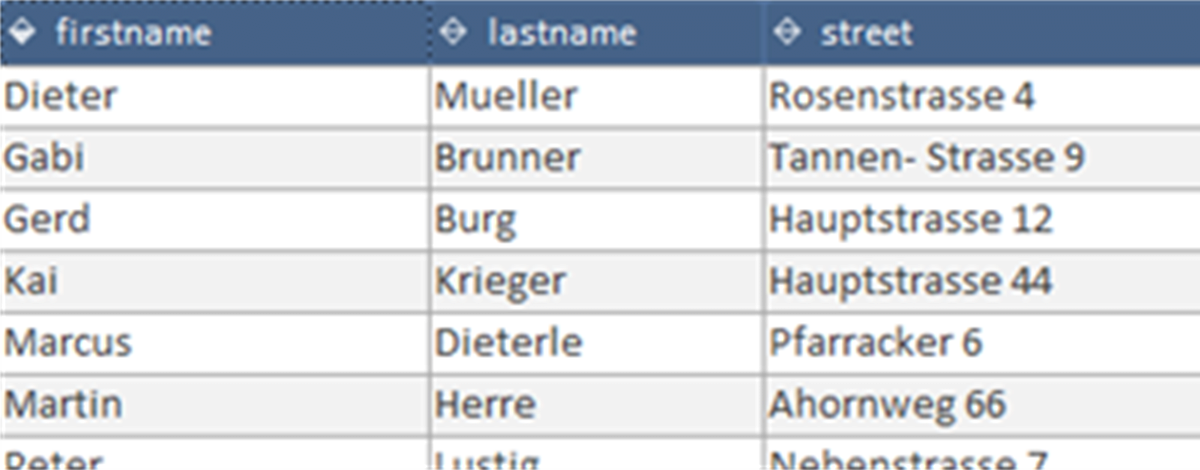
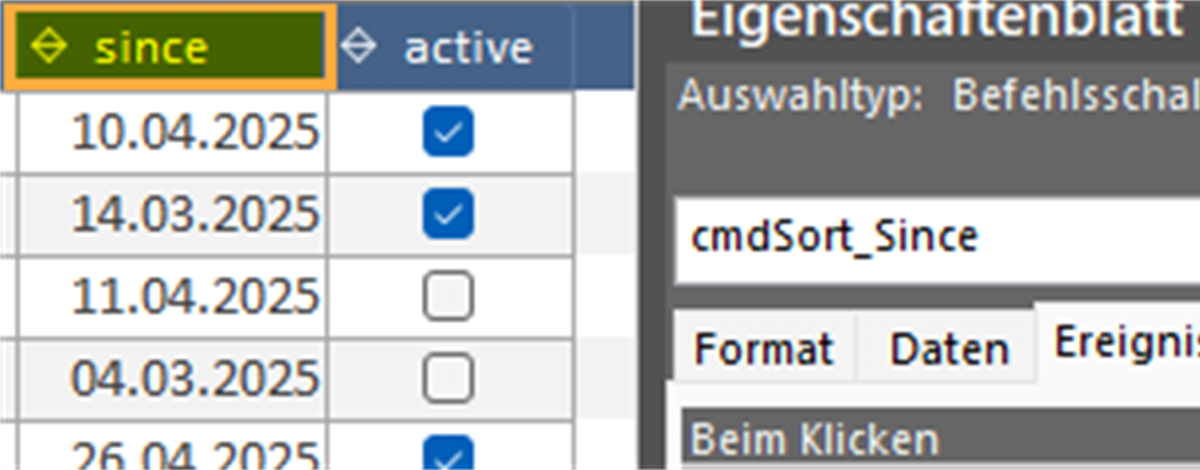
Sorting arrows are everywhere – in File Explorer, Excel, on websites. Just not in Access. So we build them ourselves: convenient column sorting for continuous forms with two functions, command-button headers and icons from the MSysResources.
Who doesn’t know them – the small sorting arrows in column headers: in File Explorer, in Excel, on websites, in almost every modern program. Just not in Access. What Access can’t do, we’ll build ourselves.
What do we need for this?
- The main function
ToggleSort()controls everything: switch sorting direction, set icons. - The wrapper function
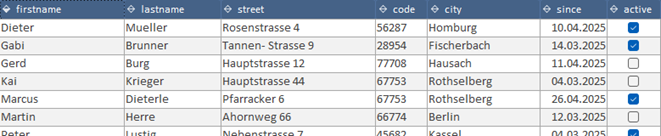
SortColumn()calls the main function and passes the parameters. - A few CommandButtons as column headers.
- Three icons to display the sorting direction.
Why two functions?
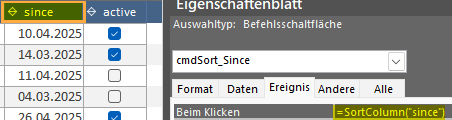
It’s quite simple: instead of building a separate click event for each column header, we use a central function in the form. When clicking, we only pass the field name to SortColumn(), and it takes care of the rest.
Sequence
- Click on the header button
SortColumn("field name")is called- It passes the form, field name and ActiveControl to
ToggleSort() ToggleSort()sorts the desired column (ASC/DESC) and changes the icon accordingly
The functions
1. The main function: ToggleSort()
Public Sub ToggleSort(frm As Form, columnName As String, sortControl As Control)

    Dim currentSort As String   ' current sort of the form
    Dim newSort     As String   ' sorting string to hand over to the form
    Dim sortDir     As String   ' sorting direction (ASC/DESC)
    Dim sortPicture As String   ' name of the picture (MSysResources) for the button
    Dim ctrl        As Control  ' to loop through the command buttons

    Application.Echo False

    ' get current sorting
    currentSort = Nz(frm.OrderBy, "")

    ' Default: ascending if no sorting is set yet
    sortDir = "ASC"
    sortPicture = "sort_ASC"

    ' Check whether it is already sorted
    If InStr(1, currentSort, "[" & columnName & "] DESC", vbTextCompare) > 0 Then
        sortDir = "ASC"
        sortPicture = "sort_ASC"
    ElseIf InStr(1, currentSort, "[" & columnName & "] ASC", vbTextCompare) > 0 Then
        sortDir = "DESC"
        sortPicture = "sort_DESC"
    ElseIf InStr(1, currentSort, "[" & columnName & "]", vbTextCompare) > 0 Then
        ' Only column name without direction: assume descending
        sortDir = "DESC"
        sortPicture = "sort_DESC"
    End If

    ' Set new sort order
    newSort = "[" & columnName & "] " & sortDir
    frm.OrderBy = newSort
    frm.OrderByOn = True

    ' Reset icons of all sort buttons
    For Each ctrl In frm.Controls
        If ctrl.ControlType = acCommandButton And Left(ctrl.Name, 8) = "cmdSort_" Then
            ctrl.Picture = "sort_X"
        End If
    Next ctrl

    ' Set icon for the active control
    sortControl.Picture = sortPicture

    Application.Echo True

End Sub
2. The wrapper function: SortColumn()
Private Function SortColumn(sColumn As String)
    Call ToggleSort(Me, sColumn, Me.ActiveControl)
End Function
The icons – where from?
Never heard of MSysResources? Then it’s time: show the system objects (right-click → Navigation Options) – and there it is, the hidden icon goldmine. You can swap the icons and make your Access design unique.
- ▶️
sort_X→ neutral - 🔼
sort_ASC→ ascending - 🔽
sort_DESC→ descending
Why buttons instead of labels for the headers? Only CommandButtons support icons, mouseover effects and a changed cursor symbol – labels can’t do any of that.
Conclusion
With minimal effort you finally bring convenient sorting to your Access forms: implement once, use everywhere – without VBA clutter, as many columns as you like, completely maintainable. You’ll find the detailed description and all notes directly in the code, well documented as usual.
Download
Convenient sorting of continuous forms in MS Access – with ToggleSort(), a wrapper function and icons from the MSysResources. Implement once, use everywhere.