

TreeView LITE for Microsoft Access
Access ships without a tree control. TreeView LITE fills that gap using the EdgeBrowser – three code modules, three data sources, free of charge.
Access Has No Tree Control
Anyone wanting to display a hierarchy in Access – product groups, locations, folders, bills of material – is on their own. The old TreeView control from the Windows Common Controls library depends on an OCX registration that causes trouble on modern systems and is unavailable altogether in 64-bit installations. The usual workarounds are list boxes with indented text or continuous forms with expand logic. Both work, but neither looks the part.
Since Access ships with the acEdgeBrowser, there is a third option: an HTML page inside the form that looks and behaves exactly as one expects a tree to – and that is driven from VBA.
The TreeView Inside the EdgeBrowser
TreeView LITE is a building block for your own applications: three code modules that you import into your database and bind to a form. It builds the HTML page itself, loads it into the browser and keeps it connected to VBA. To the end user it is a control like any other.
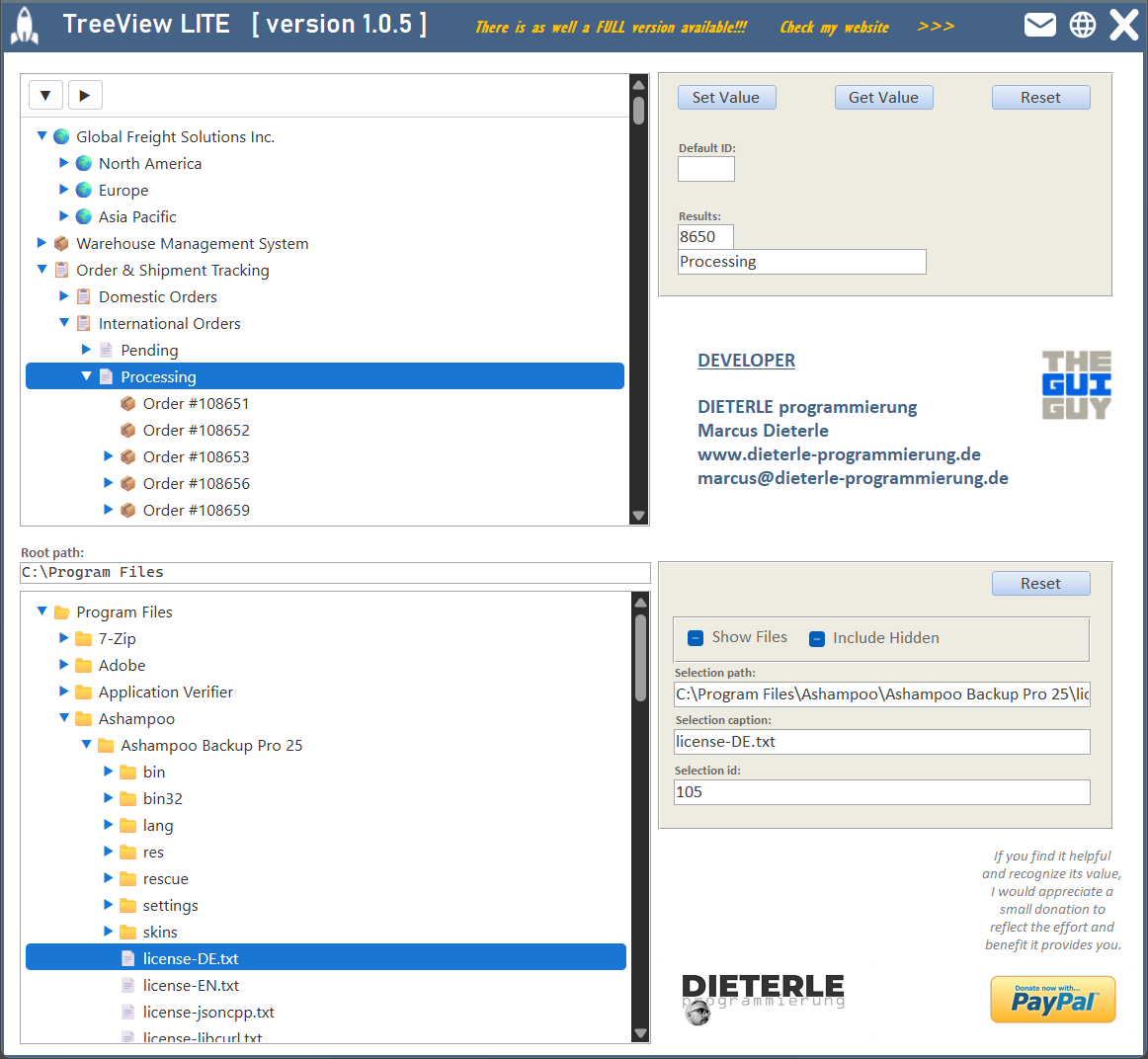
No references are needed. All external objects are created through CreateObject, which keeps the product free of library references – and therefore free of the most common cause of compile errors after distribution.
| File | Type | Purpose |
|---|---|---|
DPcoreTV.bas | standard module | runtime core: error handling, temp files, JSON |
clsDPwebBridgeTV.cls | class module | connection between VBA and the page in the browser |
clsDPtreeView.cls | class module | the TreeView itself |
The Shortest Working Code
An acEdgeBrowser named webTreeView on the form, a table as the data source – that is all it takes:
Option Compare Database
Option Explicit

Private Const C_TIMER_MS As Long = 150      ' Polling interval
Private objTreeView      As clsDPtreeView   ' The control


Private Sub Form_Load()
    Set objTreeView = New clsDPtreeView
    objTreeView.Init Me.webTreeView, "webTreeView", "tblTreeView_Demo"
    Me.TimerInterval = C_TIMER_MS
End Sub


Private Sub Form_Timer()
On Error Resume Next
    If Not objTreeView Is Nothing Then objTreeView.HandleTimer
End Sub


Private Sub webTreeView_DocumentComplete(URL As Variant)
On Error Resume Next
    If Not objTreeView Is Nothing Then objTreeView.HandleNavigationComplete
End Sub


Private Sub Form_Close()
On Error Resume Next
    Me.TimerInterval = 0
    If Not objTreeView Is Nothing Then
        objTreeView.Destroy
        Set objTreeView = Nothing
    End If
End Sub
These four procedures are the complete life cycle: build, poll, report page load, clean up.
No timer, no feedback. If Form_Timer is missing or TimerInterval is not set, the tree appears but never reports a selection. This is the most common integration mistake.
Three Data Sources
All three modes use the same class and the same properties. The only difference is where the nodes come from.
| Mode | Data source | Call |
|---|---|---|
| Table | a table with a fixed column schema | Init |
| SQL | any SELECT statement | InitSQL |
| Explorer | the file system | InitExplorer |
Table
The table needs five columns. ParentID points at the ID of the parent node; left empty, the node sits at the top level.
| Column | Type | Meaning |
|---|---|---|
ID | AutoNumber, primary key | unique identifier |
ParentID | Number (Long) | parent node; empty = top level |
Caption | Text (255) | the caption displayed |
Picture | Number (Long) | Unicode code point of the icon; 0 = automatic |
SortOrder | Number (Long) | order within the siblings |
Picture holds the Unicode code point as a number, not as a character – 128193 gives a folder, 128196 a document, 0 leaves the choice to the page. Storing a number is deliberate: a number cannot carry markup and can therefore never become an entry point for injected HTML.
SQL
As soon as the tree should not show the whole table – filtered, joined or with a calculated caption – you pass a query instead of a table name. It must deliver ID, ParentID and Caption under exactly those names; Picture is optional.
Private Sub btnLoadSQL_Click()
Dim sSQL As String                      ' Statement handed to the control

    sSQL = "SELECT ID, ParentID, Caption, Picture FROM [tblTreeView_Demo] " & _
           "ORDER BY SortOrder, ID"

    Set objTreeView = New clsDPtreeView
    objTreeView.InitSQL Me.webTreeView, "webTreeView", sSQL
End Sub
Always state your own sort order. Without ORDER BY the database decides the order of siblings. The result looks arbitrary and changes over time.
File System
In Explorer mode the tree shows folders and files. On build, only the root and its first level are read, every further folder the first time it is expanded. That is why even large directories open without a wait.
    Set objTreeView = New clsDPtreeView
    With objTreeView
        .Explorer = True
        .Path = "C:\Program Files"
        .ShowFiles = True
        .IncludeHidden = False
        .InitExplorer Me.webTreeView, "webTreeView"
    End With

    Set objTreeView.OnChangeTargetCaption = Me.txtReturn_caption
    Set objTreeView.OnChangeTargetPath = Me.txtReturn_path
Folders come before files, both groups sorted by name ascending. The icons are derived from the file extension.
The node ID in Explorer mode is not a key. It is reassigned on every scan. To find a file again later, store the path, not the number.
Receiving the Selection
For the most common case – the selection should simply land in text boxes – three assignments are enough. The rest happens by itself:
    Set objTreeView.OnChangeTargetId = Me.txtReturn_id
    Set objTreeView.OnChangeTargetCaption = Me.txtReturn_caption
    Set objTreeView.OnChangeTargetPath = Me.txtReturn_path
If you want to do more than display – load a dependent record, for instance – use the event:
Private WithEvents objTreeView As clsDPtreeView


Private Sub objTreeView_NodeSelected(ByVal sId As String)
    ' your own processing here
End Sub
The most recent selection is additionally available through SelectedId, SelectedCaption and SelectedPath.
FlushNow before reading from a button. A click in the tree may still be waiting in the page’s queue. Without FlushNow the button reads the state from before that click – and shows the previously selected node.
Why a Timer and Not a Direct Read
A click in the page does not call a VBA procedure. The page puts it into a queue, HandleTimer drains it and raises the events from it. This detour is deliberate: reading directly from within a browser event causes a race between Access and the page renderer in WebView2 – with freezes as the result.
Reading does not happen on every tick, but only once the user holds still for a moment: no mouse button down, 250 ms of quiet, plus a minimum gap that grows while nobody is working. A ceiling of four seconds makes sure clicks still arrive when someone moves the mouse continuously. The reason is tangible: every poll briefly stops the page renderer, and at the wrong moment the mouse would stutter inside the control.
LITE and FULL
TreeView LITE is the free edition. There is a FULL version that uses the same core and offers considerably more:
| Feature | LITE | FULL |
|---|---|---|
| Table, SQL, file system | ✅ | ✅ |
| Folders loaded on demand | ✅ | ✅ |
| Per-node icons | ✅ | ✅ |
| Expand and collapse all | ✅ | ✅ |
| Search within the tree | ❌ | ✅ |
| Context menu and drag and drop | ❌ | ✅ |
| TreeView builder (tree editor) | ❌ | ✅ |
| Icon picker with 1377 icons | ❌ | ✅ |
| Freely configurable colours | ❌ | ✅ |
| Count badges and connector lines | ❌ | ✅ |
| Node values and comments | ❌ | ✅ |
| Explorer: sort order and file filter | ❌ | ✅ |
| Error log written to a file | ❌ | ✅ |
The public interface of the LITE version is a subset of the FULL version. Code written against LITE keeps working unchanged after a switch, and a table built for the FULL version works in LITE as well – its additional columns are simply not read. The FULL version is available at www.dieterle-programmierung.de.
Limits and Conventions
| Item | Behaviour in LITE |
|---|---|
| Colours | fixed: white, #333333, accent #1976d2 |
| Tool bar | table and SQL mode only, two buttons |
| Explorer sorting | name ascending, up to 2000 entries per folder |
| Unreadable folders | skipped, the scan continues |
| Empty folder | shows an arrow at first; it disappears on the first click |
| Non-existent path | the tree stays empty |
| Errors | dialog, no log |
No circular references in the table. If ParentID points at its own record, or two records point at each other, a cycle is created. The control breaks out after 1000 steps, but the affected branch can no longer be displayed meaningfully.
Integration
Import three modules, place an acEdgeBrowser on the form, take the four procedures from the quick start – done. Everything else is fine tuning:
| Event | What belongs there |
|---|---|
Form_Load | create the instance, set properties, call Init…, assign target fields, set TimerInterval |
Form_Timer | HandleTimer |
Browser DocumentComplete | HandleNavigationComplete |
Form_Close | TimerInterval = 0, Destroy, clear the object variable |
Properties are set before the Init call – the first build of the page happens inside it, values set afterwards no longer take effect. When switching to another table, SetDataSource saves the complete rebuild:
    If objTreeView.IsAttached Then
        objTreeView.SetDataSource "tblTreeView_Other"
    End If
Several trees on one form are explicitly supported. Each instance needs its own browser, its own object variable and its own call in Form_Timer and DocumentComplete. Each gets its own temporary file and works independently.
Cleaning up is handled by the control. Destroy deletes the temporary file of the instance. If one is left behind after a crash, the next Access session removes it automatically.
The package includes a test form showing both modes side by side – a tree from the table at the top, one from the file system below. It is the quickest way to try the behaviour out, and at the same time the template for your own integration.
Download
Free tree control for Microsoft Access based on the acEdgeBrowser. Displays data from a table, a SQL query or the file system.
Voraussetzungen: Microsoft 365, Access 2024+, 32/64-bit