

Custom Notifications for MS Access – Subtle Feedback Instead of MsgBox
You click “Save”, send an email, or delete a record – and it feels like nothing happens. Instead of confirming a MsgBox for every action, use subtle, modern feedback notifications: briefly dim the screen, show a central icon, done.
We’ve all been there: you click “Save”, send an email, or delete a record – and it feels like nothing happens. The operation ran in the background long ago, but the user is missing feedback. And that’s key: the user needs to know the system received the input and executed it correctly.
The problem: missing feedback
Of course, the classic solution exists:
MsgBox "The recordset got deleted!", vbInformation, "Information"But let’s be honest: do we really want a message box every single time, showing the same information over and over – and requiring the user to click “OK”? Probably not.
The alternative: subtle notifications
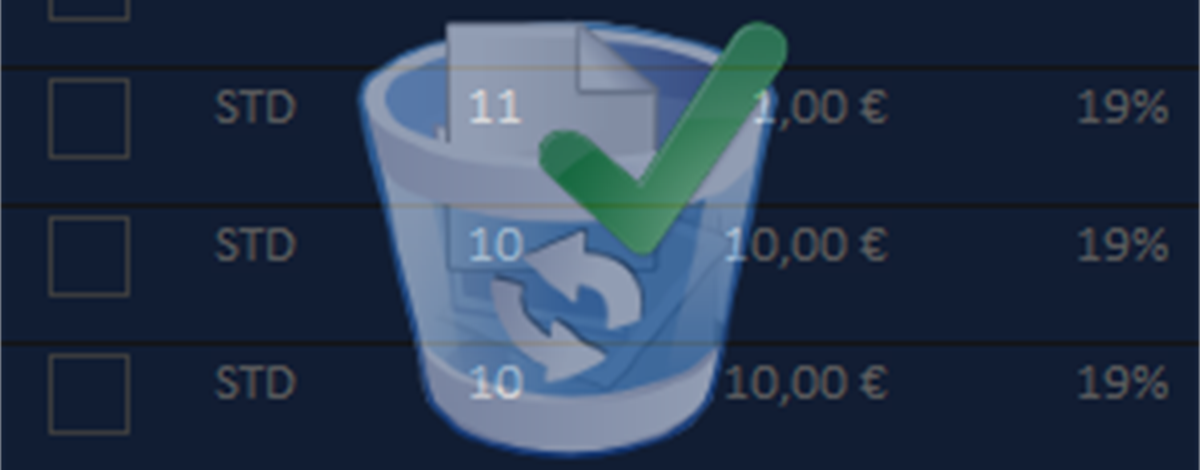
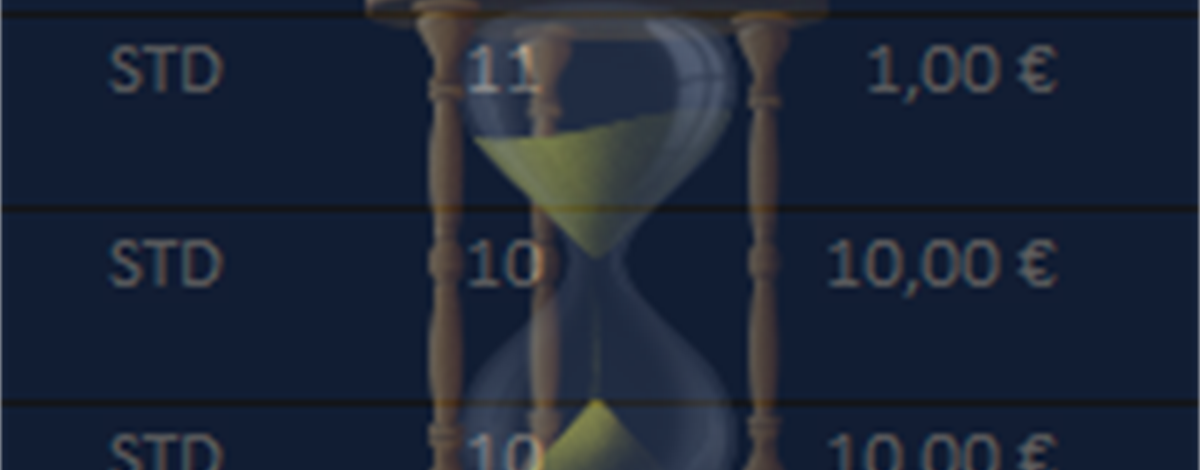
My solution is simple yet powerful: a small function that briefly dims the screen and displays a central icon with a short message. No buttons, no interruptions – just clean, instant communication with the user.
What’s more, it is:
- quick to integrate
- freely configurable (display duration, color, icon)
- and very pleasant for the user flow
Instead of the classic MsgBox, just use:
myNotification dlgType_DeletedOKShorter, sleeker – and thanks to IntelliSense, even faster to write.
How it looks


An icon is simply displayed in the middle of the screen for the set time – a picture is worth a thousand words.
Here’s what you need
1. tblDLG_Notification – a simple table with two fields:
DialogType(name)- an attachment field for your icons
2. frmDLG_Notification – a form that only shows the image from the table. This is where you define image size and visual layout.
3. modDLG_Notification – a module that contains:
- an Enumeration of your dialog types (needed for IntelliSense),
- the core functions that handle the display (no changes needed here).
Creating a new dialog in seconds
- Add your desired image to
tblDLG_Notification - Give it a clear name
- Add that name to the Enumeration in
modDLG_Notification
That’s it! Nothing more is needed for a new notification type.
With this little addition, your Access interface becomes more intuitive – and let’s face it, a whole lot “sexier”. You’ll find the detailed description and all notes directly in the code, well documented as usual.
Download
Subtle, configurable feedback notifications for MS Access instead of the classic MsgBox – quick to integrate and callable via IntelliSense.