


SQL Helper for MS Access – Your Little SQL Toolbox
Writing lots of SQL statements, debugging laboriously, formatting values by hand – that takes time and nerves. The Developers SQL Helper is a small VBA module (not an add-in) that simplifies exactly that: test SQL, show it formatted, and make values SQL-ready automatically.
MS Access and SQL simply belong together. Anyone who develops regularly writes lots of statements, debugs laboriously and formats values by hand – that takes time and nerves. That’s exactly what the Developers SQL Helper is for: a small but nice module (not an add-in), 100% VBA and with no dependencies.
Debugging made easy: checkSQL and debugSQL
Instead of Debug.Print strSQL, simply use checkSQL(strSQL) or debugSQL(strSQL) – and you immediately see what your statement is doing.
checkSQL(strSQL)generates a temporary query directly from your SELECT and displays it – perfect for quick testing. If needed, open it in design mode, fine-tune it and copy the finished SQL string from the SQL view.debugSQL(strSQL)formatsSELECT,UPDATE,DELETE,INSERT INTOorCREATE TABLEclearly in the immediate window – ideal to quickly understand what a statement does or where it gets stuck.
This is how the output looks in the immediate window:
SELECT firstname, lastname FROM tblExample WHERE active = TRUE AND number < 10

Selected Fields:
  Field 1: firstname
  Field 2: lastname
-------------------------------------------------------------------
UPDATE tblExample SET active = TRUE, number = 15 WHERE ID = 3

Columns and Values:
  WHERE Clause: ID = 3
  active = TRUE
  number = 15
-------------------------------------------------------------------
INSERT INTO tblExample (firstname, lastname, street, postalcode, active, number, since)
VALUES ('Christian', 'O''Hara', 'Tulpenweg 13', 12345, 'Hamburg', 15, #2025-02-01#)

Columns and Values:
  firstname  = 'Christian'
  lastname   = 'O''Hara'
  street     = 'Tulpenweg 13'
  postalcode = 12345
  active     = 'Hamburg'
  number     = 15
  since      = #2025-02-01#
-------------------------------------------------------------------
DELETE FROM tblExample WHERE ID = 10

DELETE FROM table: tblExample
  WHERE Clause: ID = 10
-------------------------------------------------------------------
CREATE TABLE tblTEST (ID INT, Name VARCHAR(100), Aktiv BIT)

CREATE TABLE: tblTEST
  Columns and Data Types:
    ID    - INT
    Name  - VARCHAR(100)
    Aktiv - BIT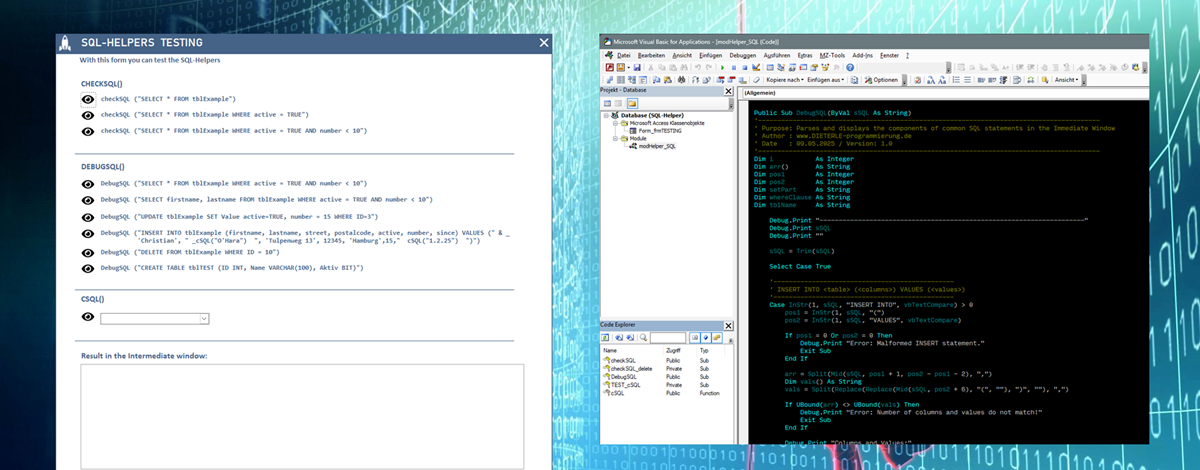
The magician: cSQL() – the smart SQL converter
We all know type conversion functions such as CInt() or CDate(). cSQL() goes further: it automatically recognizes the data type of a value – so you never have to worry again whether your value is SQL-ready:
"O'Hara"→'O''Hara'22.04.2025→#2025-04-22#3,14→3.14
No more troublesome formatting – just throw it in, it fits.
Instead of:
strSQL = "UPDATE tblExample SET name='O'''Hara', number= " & _
         Replace(pi, ",", ".") & ", Date=#" & Format(myDate, "yyyy-mm-dd") & "# WHERE ID=3"
simply:
strSQL = "UPDATE tblExample SET name=" & cSQL("O'Hara") & _
         ", number=" & cSQL(pi) & ", Date=" & cSQL(myDate) & " WHERE ID=3"
Your advantage: fewer errors, more readability, faster coding.
Conclusion
Whether debugging or secure SQL values – the Developers SQL Helper is my personal toolbox for working efficiently in Access. Small tools, big impact: ready to use, no dependencies, 100% VBA. You’ll find the detailed description directly in the code, well documented as usual.
Download
A small VBA module for MS Access: test SQL statements (checkSQL), show them formatted in the immediate window (debugSQL) and make values SQL-safe automatically (cSQL). 100% VBA, no dependencies.