
Hamburger Menu for Microsoft Access
A hierarchical navigation menu for Access that draws its entire structure and all its actions from a single table — a new menu item is a new record, not a new branch in the code.
A menu that lives off a table
Anyone who has built a navigation menu in Access knows the point where it gets unwieldy: the big Select Case that needs its own branch for every menu item. Every new entry means new code, recompiling, redeploying.
The Hamburger Menu turns that around. It is a hierarchical navigation menu that is rendered as HTML and JavaScript in the acEdgeBrowser control and fed from a table. The decisive difference: what a click triggers lives in the table, not in the code. Each entry carries an instruction such as FORMSUB:frmKunden|id=3 in its ClickEvent column — a click then opens the form frmKunden in the content area, filtered to id=3.
A new menu item is therefore a new record. No new branch, no compiling, no new deployment.
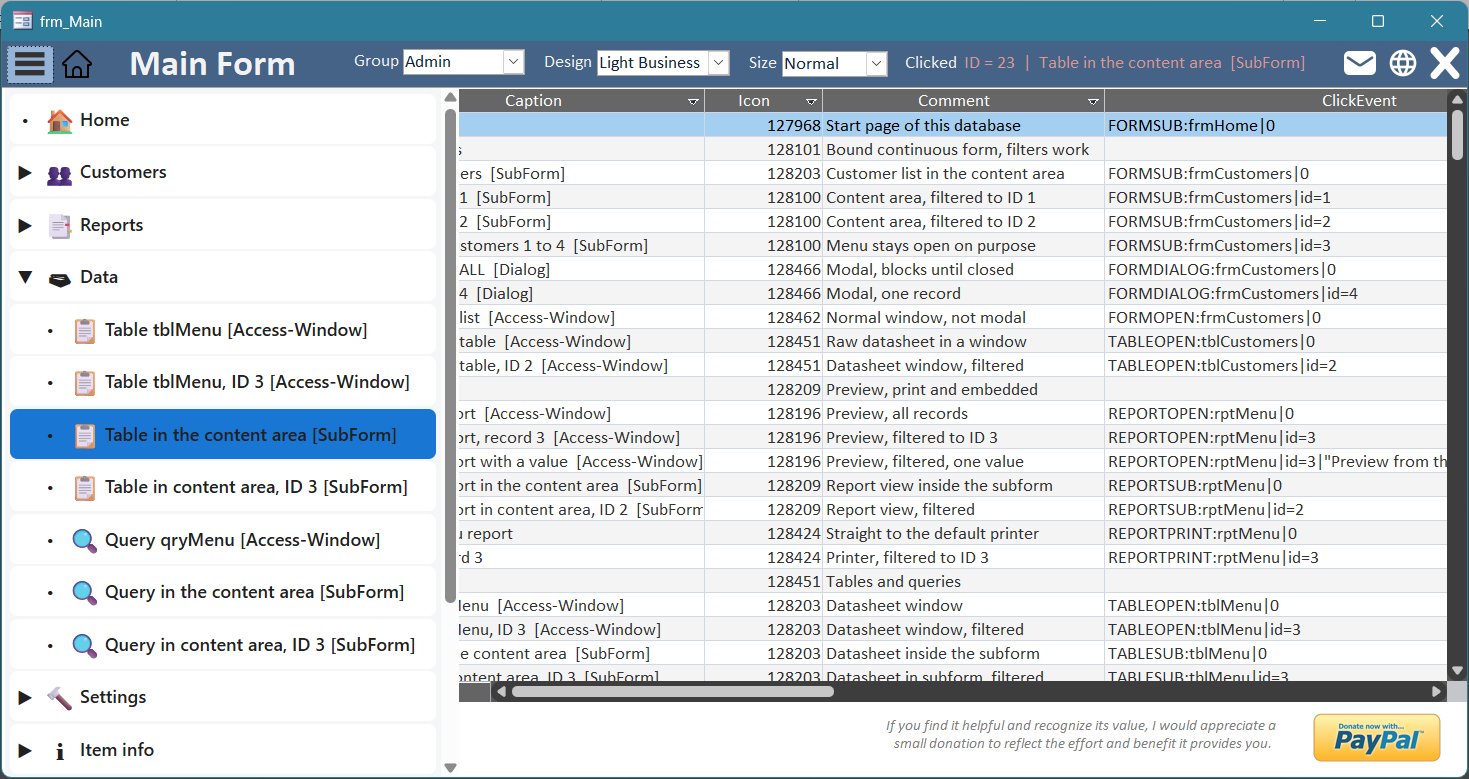
The product is meant as a building block for existing Access projects, not as a finished program: two code modules and a host form, plus examples you can keep or remove.
What it can do
- Entries nested to any depth, with expand and collapse
- Four permission groups control who sees which entry
- Fourteen action types: forms, reports, tables, queries, macros, VBA procedures and web pages
- A filter condition and typed values per entry
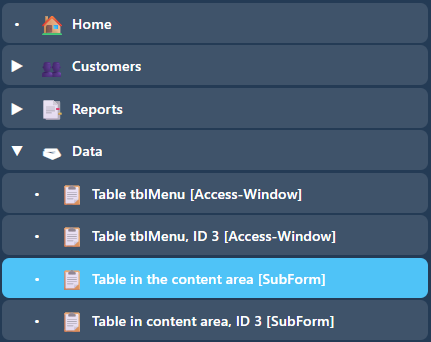
- Three designs and three sizes, switchable at runtime
- Unicode symbols per entry
The table as a control panel
The heart of it is the table tblMenu. Each row is an entry; a handful of columns determine where it hangs and what it does:
ParentIDpoints to theIDof the parent entry,0being the top level. There is no limit on nesting depth.SortOrderdetermines the order within a level.Caption,Icon(a Unicode code point as a decimal number) andComment(tooltip) make the entry visible.- Four Yes/No columns —
Admin,Group1,Group2,Group3— decide in which permission groups the entry appears. ClickEvent, finally, says what the click triggers.
If ClickEvent is empty, the entry merely marks and, where applicable, expands — the normal case for group nodes.
One important detail: ID is not an AutoNumber. Because ParentID points to ID, an AutoNumber would hand out new numbers on import into another database — the references would then point into the void and the hierarchy would fall apart. You assign the numbers yourself; the primary key guarantees uniqueness.
Fourteen action types
The ClickEvent always follows the same structure:
ART:Objekt[|Where][|Wert][|Wert]...The fourteen types cover just about everything you might want to do from a menu:
| Type | Effect |
|---|---|
FORMOPEN / FORMDIALOG / FORMSUB | Form as a window, modal or in the content area |
REPORTOPEN / REPORTPRINT / REPORTSUB | Report as a preview, to the printer or in the content area |
TABLEOPEN / TABLESUB | Table as a datasheet or in the content area |
QUERYOPEN / QUERYSUB | Query as a datasheet or in the content area |
CODERUN / CODEOPEN | Call a public procedure or show a module in the editor |
WEBOPEN | Address in the default browser |
MACRORUN | Run a macro |
For the ten object types, the first value after the object is the filter condition — written as in a query, but with single quotation marks for text:
FORMSUB:frmKunden|Name='Müller'Everything after that is typed values. They are written in VBA notation and arrive typed, not as text: "Text" as a String, 42 as a Long, 3.14 as a Double (always with a dot), #2026-08-23# as a date (always ISO), True/False as a Boolean. An entry may carry up to ten values. The placeholder {ID} is replaced by the ID of the clicked entry:
CODERUN:MenuAction_Protokoll|{ID}|"Menü"In the target object the values are already available before opening and can be picked up cleanly — for a subform, which Access never gives an OpenArgs, this is the only way:
Private Sub Form_Load()
    Me.txt1 = MenuValue_Get("Param1")
    Me.txt2 = MenuValue_Get("Param2")
End Sub
Switching the appearance at runtime
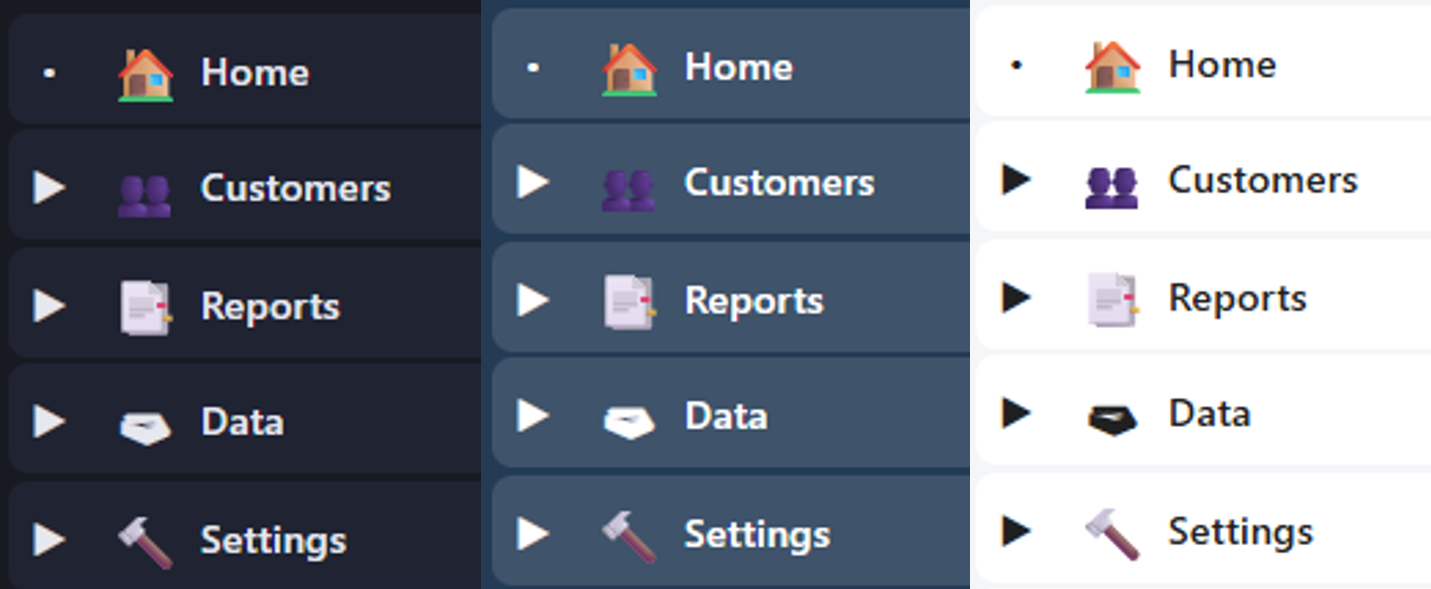
Three designs — mnuDesignDarkModern, mnuDesignGlass and mnuDesignLightBusiness — and three sizes are available. Both are switchable at runtime: you call ReloadMenu again with group, design and size. The page itself is never reloaded in the process; only what has changed is transmitted.
With Me.frmMenu
    .Visible = True
    DoEvents                        ' Steuerelement braucht sein Fenster
    .Form.ReloadMenu mnuGroupAdmin, mnuDesignLightBusiness, mnuSizeNormal
    .Form.StartPolling
End With
Built in with five moves
The menu moves into an existing form without anything having to be rebuilt:
- Import
modMenu.bas,modMenuActions.basandForm_frmMenu.cls. - Create
tblMenu(the supplied sample data with 63 entries shows all fourteen types). - Place a web browser control
webMenuonfrmMenuand set three events to[Event Procedure]— On Document Complete, On Mouse Up, On Click. - On the host form, two subforms:
frmMenufor the menu,subContentfor the content. - Show and hide it with a toggle button.
Mandatory here are only modMenu.bas and Form_frmMenu.cls; modMenuActions.bas you need as soon as an entry uses CODERUN:. Whether everything is in place is told by a call in the Immediate window:
Menu_SelfTestIt reports the table, optional columns, group enforcement and the temporary path. A second call, Menu_LastSkippedRows(), reveals after each table rebuild whether Access silently skipped a faulty record — because every row is processed individually, and an unusable entry does not abort the build.
Two things you need to know
tblMenu is source code, not data. A record can start a procedure via CODERUN:, and a filter condition is an Access expression that can call functions. Whoever may write to this table can execute what the Access process can execute — protect it like the VBA code, not like a customer list. The browser page itself, incidentally, cannot invent an action: it only reports an ID; everything else is looked up by VBA in its own, group-filtered cache.
The order when displaying is delicate. Because the menu lives in the Edge control of a subform, the rule is: first make it visible, then DoEvents, then talk to the page. Sending JavaScript into a control that is still invisible makes Access crash without a VBA error. For the same reason the menu does not navigate from Form_Load, but only on the first timer tick. This one rule you must obey — after that, it runs.
Limits
The menu builds all rows once and, when expanding and collapsing, only writes visibilities; up into the range of a few hundred entries this is inconspicuous. Two Access instances of the same user do not get in each other’s way, because the temporary HTML file carries the process ID in its name — two menus within a single application, by contrast, share the value store, which can lead to mixed-up values when both are operated at the same time.
Required are Microsoft Access from Office 2024 or Microsoft 365 (32/64-bit), the installed WebView2 runtime and Windows. No additional references are needed: the UTF-8 file output and the access to the VBA editor run via late binding, and DAO is set in Access anyway.
Download
Table-driven hamburger menu for Microsoft Access: HTML/JavaScript in the Edge control, fourteen action types, permission groups, three designs — a building block to drop into existing projects.
Requirements: Ab Office 2024 und Microsoft 365, 32/64-bit
File size: 5,0 MB