

TreeView FULL for Microsoft Access
TreeView FULL brings a complete hierarchical tree to Microsoft Access — no external DLLs, three operating modes, and a VBA class that is ready to use in just a few lines.
What TreeView FULL Is
A tree control is one of those controls that Access does not provide out of the box — at least not in a form that works reliably with modern operating systems. TreeView FULL closes that gap: it runs inside an embedded Edge browser (acEdgeBrowser) directly on the Access form and communicates with VBA via a timer-driven polling interface. No external DLLs, no COM registration — import three VBA classes, place a browser control on the form, done.
The result is a hierarchical tree with search, context menus, badge display for child counts, Unicode icons, and fully configurable colors — all in three independent operating modes.
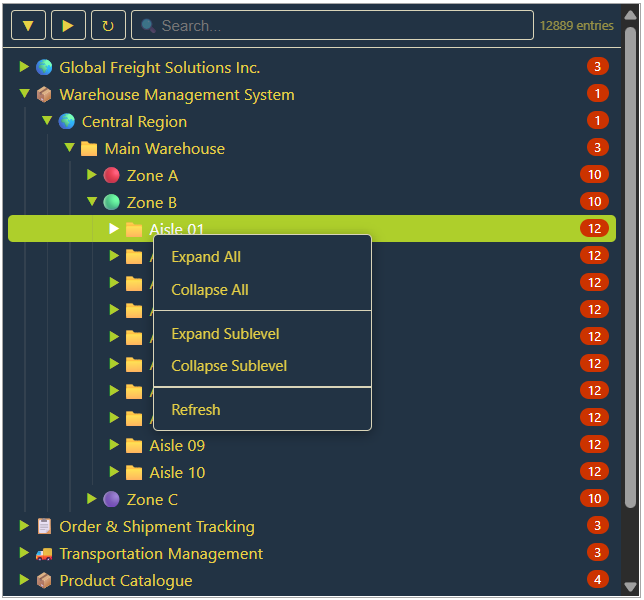
Three Modes for Three Situations
Table mode reads an Access table with a fixed schema (ID, ParentID, Caption, …) and displays its contents as a collapsible tree. To maintain the tree structure interactively, set TreeEdit = True — this adds a complete CRUD context menu with drag & drop directly in the tree, without a single line of form code.
SQL mode works like table mode but is fed from any SELECT query. Filtered or computed tree structures from multiple joined tables are no problem.
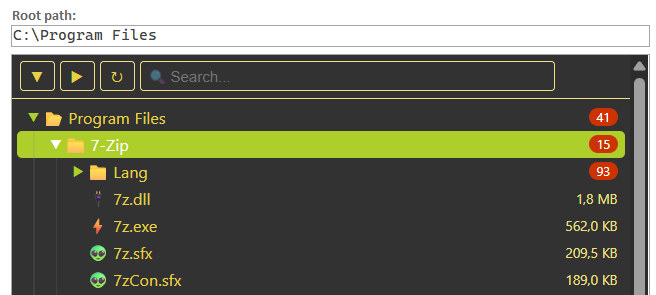
Explorer mode displays the file system of a local path. Subfolders are loaded only when expanded (lazy loading), so even deep directory trees are navigable without noticeable delays.
Installation
Three classes are imported into the target database — in this order:
DPcore.cls— runtime core for error handling, cache, JSON, and SQL protectionclsDPwebBridge.cls— communication bridge between the browser control and VBAclsDPtreeView.cls— the control itself with its public API
On the form, a single acEdgeBrowser control is sufficient. Text boxes for return values are optional. No additional VBA references are needed — all three classes work exclusively with late binding.
Quick Start: a Tree in Eight Lines
Option Compare Database
Option Explicit

Private objTreeView As clsDPtreeView   ' module-level variable — not local!

Private Sub Form_Open(Cancel As Integer)
    Set objTreeView = New clsDPtreeView
    objTreeView.AttachForm _
        Me, Me.webTreeView, "webTreeView", "tblTreeView_Demo"
End Sub
This is the complete minimum code. AttachForm sets the form timer and hooks the class into the host form via subclassing — the class receives the form’s Timer and Unload events as well as the browser’s navigation events directly. Form_Timer, Form_Close, and webTreeView_DocumentComplete do not need to be written in the form module.
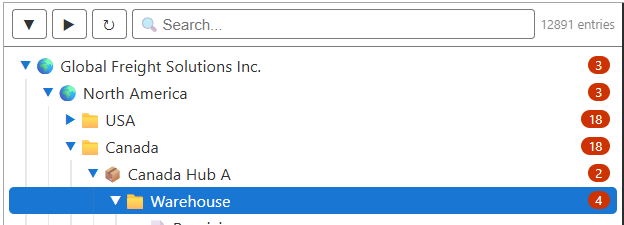
Colors, Font, and Access Theme
All color properties expect CSS hex strings ("#rrggbb"). The most important at a glance:
| Property | Default | Meaning |
|---|---|---|
BackColor | #ffffff | Background color of the tree |
ForeColor | #333333 | Text color of nodes |
AccentColor | #1976d2 | Color of selected nodes and icons |
HoverColor | (= AccentColor) | Hover color for nodes and buttons |
BadgeBackColor | #cc3300 | Background of the child-count badge |
To avoid manually transferring the form’s color scheme, use ApplyAccessTheme: the method reads the color, hover state, font, and font size from any CommandButton on the form and applies them to the tree in a single call. Individual values can still be overridden afterwards — the last assignment wins.
Private Sub Form_Open(Cancel As Integer)
    Set objTreeView = New clsDPtreeView
    With objTreeView
        .ApplyAccessTheme Me.btnBeliebig   ' adopt theme from button
        .HoverColor   = "#b4befe"          ' override individual color
        .ShowBadge    = True
        .ShowContext  = True
        .DefaultId    = 5                  ' pre-select node 5 on open
        .AttachForm Me, Me.webTreeView, "webTreeView", "tblTreeView_Produkte"
    End With
    Set objTreeView.OnChangeTargetId      = Me.txtId
    Set objTreeView.OnChangeTargetCaption = Me.txtCaption
End Sub
All properties must be set before AttachForm — after that, only data updates via InjectTreeData and table-source changes via SetDataSource are possible without a full rebuild.
Receiving Return Values
When a node is clicked, optionally registered text boxes are filled automatically:
Set objTreeView.OnChangeTargetId      = Me.txtId
Set objTreeView.OnChangeTargetCaption = Me.txtCaption
Set objTreeView.OnChangeTargetValue   = Me.txtValue
Alternatively, the NodeSelected(ByVal sId As String) event is available via WithEvents, as well as the cache properties SelectedId, SelectedCaption, and SelectedValue for direct reading.
Before a save button, FlushNow is recommended — it drains the JavaScript queue immediately without waiting for the next timer tick, ensuring no stale value is read:
Private Sub btnSpeichern_Click()
    objTreeView.FlushNow
    Dim lngId As Long
    lngId = CLng(Nz(objTreeView.SelectedId, 0))
    ' ... process further
End Sub
Explorer Mode: File System as a Tree
Explorer mode requires no table name, only a start path:
With objTreeView
    .Path          = Environ$("ProgramFiles")
    .ShowFiles     = True
    .FileFilter    = "*.accdb;*.accdr"
    .ShowNodeValue = True    ' shows file size next to the name
    .ShowComment   = True    ' shows modification date as tooltip
    .AttachFormExplorer Me, Me.webTreeView, "webTreeView"
End With
Set objTreeView.OnChangeTargetPath = Me.txtPfad
Set objTreeView.OnChangeTargetDate = Me.txtDatum
The file filter accepts plain extensions (pdf), dot extensions (.pdf), wildcards (*.pdf), and semicolon-separated lists (*.cls;*.bas). Folders are always displayed alphabetically before files; for files, the sort criterion (Name, Date, Size, Type) and direction (ASC/DESC) can be freely chosen.
Important: the stable identifier of a file is always SelectedPath — synthetic node IDs are reassigned at every scan and cannot be persisted.
CRUD, Drag & Drop, and Icon Picker
With TreeEdit = True, table and SQL mode gain a full editing menu: create nodes, duplicate, delete, move among siblings, promote or demote by one level. Drag & drop is also included — its completion is reported as an EditAction event with the pattern DRAGDROP:dragId:targetId:zone (zone = before, inside, or after).
The icon picker displays 1,377 Unicode symbols in a searchable grid and is attached to a second acEdgeBrowser control. It is built once per color combination and held in the session cache — multiple instances or table switches incur no second load.
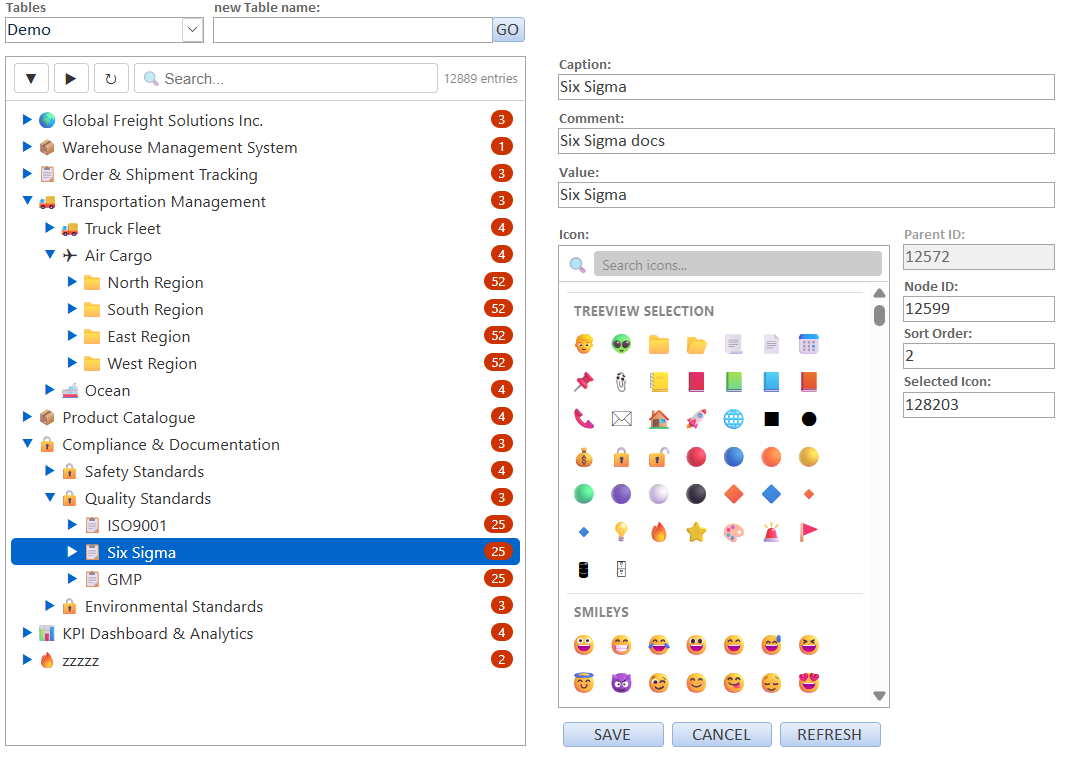
Also included in the package is frmDPtreeView_Builder: a ready-made form that manages tblTreeView_* tables visually — create a new table, edit nodes, assign icons, adjust order via drag & drop. The builder switches between tables without reloading the icon picker, reducing the switch time to under 100 ms.
How Communication Works Internally
VBA cannot read directly from inside a browser event — a synchronous call would deadlock the WebView2 renderer and the Access UI thread. The solution is a timer-driven polling loop: every interaction in the browser (click, selection, drag & drop) writes a command to a JavaScript-side queue. At each timer tick, HandleTimer drains the entire queue at once and returns it as a JSON array.
The idle-gate mechanism ensures that a read only happens when the user has been idle for at least IdleGateMs milliseconds (default: 250 ms). Pure timer ticks without a read are virtually free. To adjust the value:
objTreeView.IdleGateMs = 200   ' poll slightly earlier
objTreeView.IdleGateMs = 0     ' disable gate, always poll immediately
Load Time
The time-determining step is not generating the HTML data in VBA but the rendering by WebView2 — this portion determines virtually the entire load time and is outside this component’s control. To reduce perceived load time, target the data volume: Explorer mode loads subfolders only on expansion (lazy loading) — precisely for this reason. In table and SQL mode, InjectTreeData updates the running tree without a page reload, which significantly speeds up the most frequent operation.
System Requirements
| Requirement | Value |
|---|---|
| Microsoft Access | 2024 or Microsoft 365 (32 or 64 bit) |
| Windows | 10 or 11 |
| WebView2 Runtime | must be installed (shipped with Microsoft Edge) |
| VBA references | none — exclusively late binding |
clsDPtreeView checks on startup whether DPcore version 1.0.7 or later is present. If this version is missing, a one-time message appears — in that case, re-import DPcore.cls from the current package.
All errors are automatically logged to dp_log.jsonl next to the database file. A quick overview of the system state:
MsgBox DPcore.SysSelfTest